Clean your phone list.
One upload at a time.
Validate contact numbers in a CSV or Excel file before your next campaign or CRM import. Review each result and keep the fields your team needs.
No credit card required · then $0.004 per validation
contacts.csv
Illustrative results
Files stay in your browser. No validation job is submitted from this preview.
A simpler way to clean contact data.
Keep the process clear from upload through download.
Upload your list
Export your contacts as a CSV or Excel (.xlsx) file and select the phone number column. An SPV account and enough funds in your wallet are required.
Review each number
See validation status and available line type, carrier, location and risk fields for each row.
Download the results
Download the output and filter it for your own contact policy before re-importing it.
A list that is easier to process and re-import.
Keep record identifiers and phone numbers aligned.
- 01
Preserve record IDs
Keep an identifier beside each phone number so your results can be matched back to the right record.
Do not match solely on contact names.
- 02
Use consistent phone input
Store numbers as text and retain country codes where available.
Avoid spreadsheet formatting that removes leading digits.
- 03
Keep only necessary fields
Provide what the validation job needs rather than unrelated personal information.
Plan your processing purpose and data handling before upload.
Build a contact policy from the result fields.
Use validation and available enrichment in separate columns.
Line typeSegment for the channel you intend to useE.164 formatStore consistently when re-importingKeep the cleaned list useful over time.
Phone data changes, so a completed lookup is a snapshot.
- 01
Download the result
Review the output for missing data and unexpected rows.
- 02
Apply your filters
Keep legitimate but review-worthy line types visible.
- 03
Re-import and record the check
Retain a validation timestamp and re-check where freshness matters.
Clear data practices. Clear responsibilities.
Review how SPV describes customer-data processing before introducing it into your workflow.
Your numbers.
Your processing purpose.
SPV’s published policy states it processes submitted data to deliver the requested service and does not sell submitted personal information.
Read the privacy policyPrivacy and data protection
The policy addresses GDPR and UK GDPR, data-subject rights and international transfers. Customers remain responsible for their lawful basis for processing.
Retention and security
Retention varies by purpose and legal requirements. Review the published policy and ask the team for retention periods and the controls relevant to your deployment.
Validation and outreach consent
A valid number does not establish permission to call or text. Apply your consent, suppression and channel-specific checks separately.
Direct answers to your questions.
Find the practical details for this page.
What is a bulk phone validator?
It processes a list of phone numbers and provides per-number validation results instead of requiring individual manual checks.
How much does a list cost?
One lookup per unique number, at $0.004 each. If the same number appears more than once in a file, it is charged once. Your account needs enough funds for the list before the job starts, and your free lookups are used first.
Does the validator remove numbers from my list?
No. Every row comes back with its result. Review the output and apply your own policy before re-importing.
Which file format does SPV support?
CSV or Excel (.xlsx) uploads. In the dashboard we show your columns and you choose the one with the phone numbers. Through the API it is found automatically when named phone, number, mobile or tel, or you name it with phoneColumn.
Does a bulk job run in the background?
Yes. You can leave the page while the list is processed. We email you when the results are ready to download.
Does the file preview on this page upload my file?
No. The preview counts rows locally in your browser. Use your SPV account for actual validation.
Bulk jobs in your account.
Real screens from the app, shown with sample data.
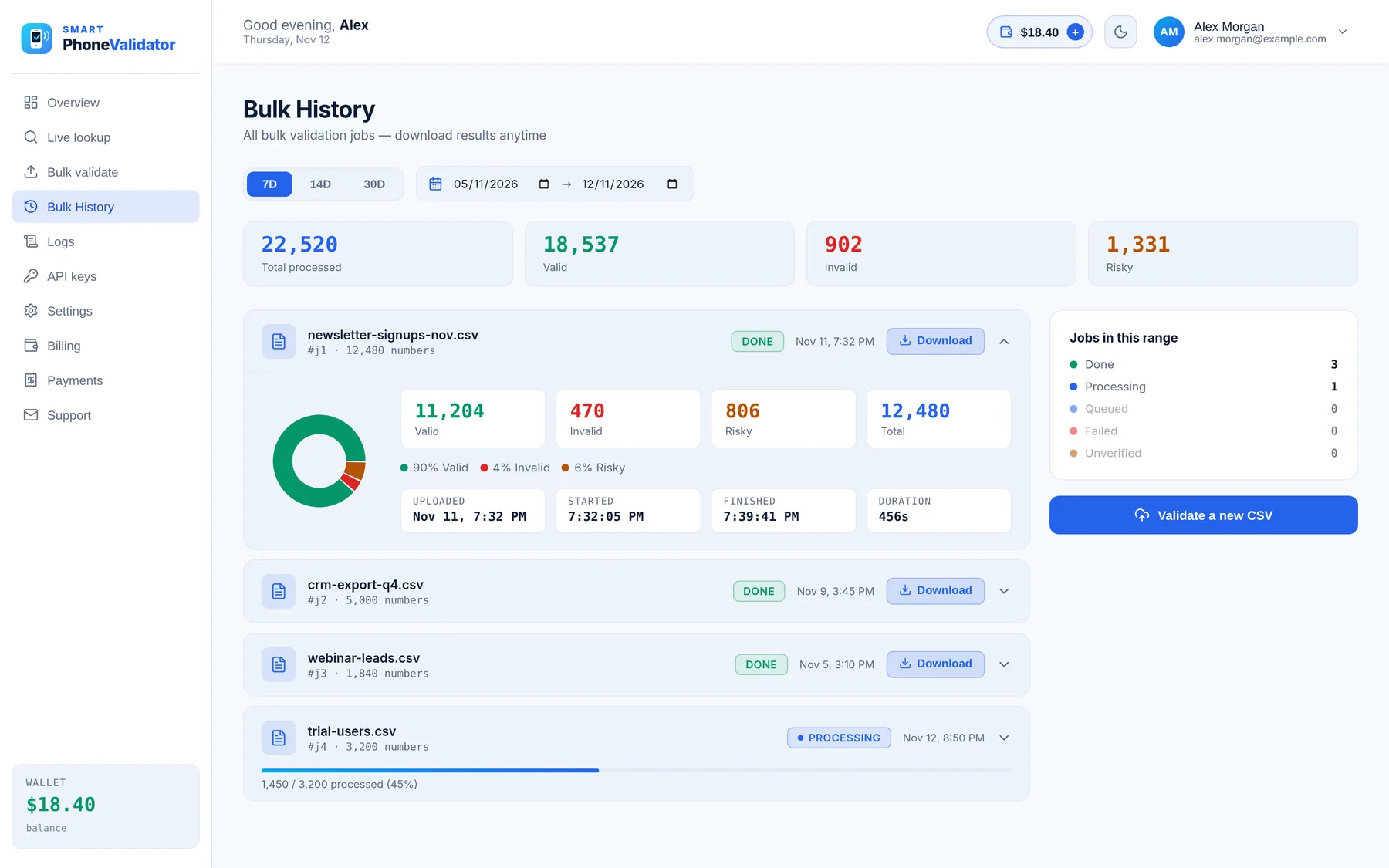
- CSV or Excel files, with a choice of which column holds the phone numbers
- Live progress, then valid, risky and invalid counts for every file
- Download the results as a CSV, and get an email when the job is done
- Repeated numbers in a file are charged once
Start with the numbers you have.
Check a single number, clean a contact list, or add validation to your app.